# FlooydDNS+ Setup guide

Follow the instructions below to set up FlooydDNS+ on your device, browser or router.

<div align="left"><figure><img src="https://3209585786-files.gitbook.io/~/files/v0/b/gitbook-x-prod.appspot.com/o/spaces%2FuoUddEfTziH0ttFC1bit%2Fuploads%2Fm8BxrSodmrjHI2ex8lzB%2FDNS.png?alt=media&amp;token=67ae376d-7957-45f6-9739-971f12a501cc" alt=""><figcaption></figcaption></figure></div>

***

### Android

**Private DNS Android 9 or higher**

1. Go to Settings → Network and internet → Advanced → Private DNS.
2. Select the Private DNS provider hostname option.
3. Enter 37b96c.dns.nextdns.io and tap Save.

***

### iOS

**Configuration profile iOS 14 or higher**

1. Use <https://apple.nextdns.io/?profile=37b96c>
2. Select FlooydDNS+ or FlooydDNS+ Kids&#x20;

***

### Windows

**DNS over HTTPS for Windows 11**

1. Open the Settings app.
2. Go to Network & internet.
3. Click on Wi-Fi (or Ethernet).
4. Click on Hardware properties, or ignore this step if you clicked on Ethernet.
5. Click the Edit button next to DNS server assignment.
6. Select Manual.
7. Enable IPv4.
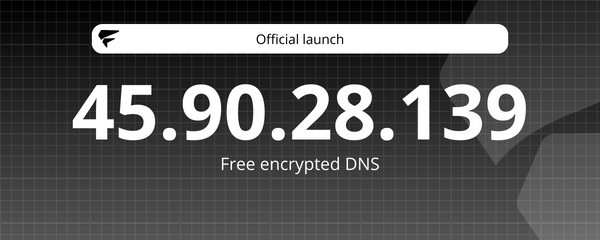
8. Enter 45.90.28.139 as Preferred DNS, then select On (manual template) and enter <https://dns.nextdns.io/37b96c>.
9. Enter 45.90.30.139 as Alternate DNS, then select On (manual template) and enter <https://dns.nextdns.io/37b96c>.
10. Click Save.

**IPv6 Support for Windows**

1. Click on the Start menu, then click on Control Panel.
2. Click Network and Internet, then click Network and Sharing Center.
3. Click Change adapter settings.
4. Right-click on the Wi-Fi network you are connected to and click Properties.
5. Select TCP/IP Protocol Version 6 (TCP/IPv6).
6. Click on Properties.
7. Click Use the following DNS server addresses.
8. Replace the current addresses (if any) with 2a07:a8c0::37:b96c and 2a07:a8c1::37:b96c.
9. Click OK, then Close. You may need to restart your browser.

**IPv4 (with linked IP)**

1. Click on the Start menu, then click on Control Panel.
2. Click Network and Internet, then click Network and Sharing Center.
3. Click Change adapter settings.
4. Right-click on the Wi-Fi network you are connected to and click Properties.
5. Select TCP/IP Protocol Version 4 (TCP/IPv4).
6. Click on Properties.
7. Click Use the following DNS server addresses.
8. Replace the current addresses (if any) with 45.90.28.139 and 45.90.30.139.
9. Click OK, then Close. You may need to restart your browser.

***

### macOS

**Configuration profile macOS Big Sur or higher**

1. Use <https://apple.nextdns.io/?profile=37b96c>
2. Select FlooydDNS+ or FlooydDNS+ Kids&#x20;

**IPv6 Support for macOS**

1. Open System Preferences and click on Network.
2. Select the network you are connected to and click on the Advanced button.
3. Go to the DNS section.
4. In the list of DNS servers, remove all addresses (if any) and add 2a07:a8c0::37:b96c and 2a07:a8c1::37:b96c .
5. Click OK and then Apply.

**IPv4 (with linked IP)**

1. Open System Preferences and click on Network.
2. Select the network you are connected to and click on the Advanced button.
3. Go to the DNS section.
4. In the list of DNS servers, remove all addresses (if any) and add 45.90.28.139 and 45.90.30.139 .
5. Click OK and then Apply.

***

### Linux

**systemd-resolved**

Use the following in /etc/systemd/resolved.conf

```
[Resolve]
DNS=45.90.28.139#37b96c.dns.nextdns.io
DNS=2a07:a8c0::#37b96c.dns.nextdns.io
DNS=45.90.30.139#37b96c.dns.nextdns.io
DNS=2a07:a8c1::#37b96c.dns.nextdns.io
DNSOverTLS=yes
```

**or IPv6 Support for Linux**

Change your DNS servers to 2a07:a8c0::37:b96c and 2a07:a8c1::37:b96c.

**or IPv4 (with linked IP)**&#x20;

Change your DNS servers to 45.90.28.139 and 45.90.30.139.

**or dnsmasq**

Use the following in dnsmasq.conf

```
no-resolv
bogus-priv
strict-order
server=2a07:a8c1::
server=45.90.30.139
server=2a07:a8c0::
server=45.90.28.139
add-cpe-id=37b96c
```

**or Stubby**

Use the following in stubby.yml

```
round_robin_upstreams: 1
upstream_recursive_servers:
  - address_data: 45.90.28.139
    tls_auth_name: "37b96c.dns.nextdns.io"
  - address_data: 2a07:a8c0::0
    tls_auth_name: "37b96c.dns.nextdns.io"
  - address_data: 45.90.30.139
    tls_auth_name: "37b96c.dns.nextdns.io"
  - address_data: 2a07:a8c1::0
    tls_auth_name: "37b96c.dns.nextdns.io"
```

:warning: Make sure that Stubby is linked to OpenSSL 1.1.1 or higher, as earlier versions will not work with FlooydDNS+

**or DNSCrypt**

Use the following in dnscrypt-proxy.toml

```
server_names = ['NextDNS-37b96c']

[static]
  [static.'NextDNS-37b96c']
  stamp = 'sdns://AgEAAAAAAAAAAAAOZG5zLm5leHRkbnMuaW8HLzM3Yjk2Yw'
```

**or Knot Resolver**

Use the following in /etc/kresd/custom.conf

```
policy.add(policy.all(policy.TLS_FORWARD({
  {'45.90.28.139', hostname='37b96c.dns.nextdns.io'},
  {'2a07:a8c0::', hostname='37b96c.dns.nextdns.io'},
  {'45.90.30.139', hostname='37b96c.dns.nextdns.io'},
  {'2a07:a8c1::', hostname='37b96c.dns.nextdns.io'}
})))
```

**or cloudflared**

Use the following in /usr/local/etc/cloudflared/config.yml

```
proxy-dns: true
proxy-dns-upstream:
 - https://dns.nextdns.io/37b96c
```

**or Unbound**

Use the following in unbound.conf

```
forward-zone:
  name: "."
  forward-tls-upstream: yes
  forward-addr: 45.90.28.139#37b96c.dns.nextdns.io
  forward-addr: 2a07:a8c0::#37b96c.dns.nextdns.io
  forward-addr: 45.90.30.139#37b96c.dns.nextdns.io
  forward-addr: 2a07:a8c1::#37b96c.dns.nextdns.io
```

:warning: As a recursive resolver, Unbound looks for CNAMEs. This can result in unexpected behavior when used in conjunction with a blocking DNS resolver like FlooydDNS+. See [github.com/NLnetLabs/unbound/issues/132](https://github.com/NLnetLabs/unbound/issues/132)

***

### Chrome OS

**Secure DNS**

1. Open the Settings app.
2. Go to Security and Privacy.
3. Enable Use secure DNS.
4. Select With: Custom, then enter <https://dns.nextdns.io/37b96c>.

**IPv6 Support for Chrome OS**

Change your DNS servers to 2a07:a8c0::37:b96c and 2a07:a8c1::37:b96c.

**IPv4 (with linked IP)**

Change your DNS servers to 45.90.28.139 and 45.90.30.139.

***

### Browsers

<img src="https://my.nextdns.io/static/media/google-chrome.733603026b72e1cec95c9a01fc757533.svg" alt="" data-size="line"> **Google Chrome**

1. Go to Settings.
2. In the Privacy and security section, click Security.
3. In the Advanced section, enable Use secure DNS.
4. Select With: Custom and enter <https://dns.nextdns.io/37b96c>.

<img src="https://my.nextdns.io/static/media/firefox.0d2b9a7f6ecc571ff178edaa1499917a.svg" alt="" data-size="line"> **Firefox**

1. Open Preferences.
2. Scroll down to the Network Settings section and click Settings.
3. Scroll down and check Enable DNS over HTTPS.
4. Select Custom, enter <https://dns.nextdns.io/37b96c> and click OK.

5. Enter "about:config" in the address bar (and click I accept the risk! if prompted).
6. Set network.trr.mode to 3.

<img src="https://my.nextdns.io/static/media/edge.3c71f90f3e8da1039843610d413b207b.svg" alt="" data-size="line"> **Microsoft Edge**

1. Open Settings.
2. Go to the privacy, search and services section.
3. Under Security, enable Use secure DNS to specify how to look up the network address of websites.
4. Choose a service provider, type <https://dns.nextdns.io/37b96c>.

<img src="https://my.nextdns.io/static/media/brave.ed521304d8e517d3fa8481ded8829f65.svg" alt="" data-size="line">**Brave**

1. Open Settings.
2. In the Privacy and security section (under Additional settings), go to Security.
3. In the Advanced section, turn on Use secure DNS.
4. Select With: Custom and enter <https://dns.nextdns.io/37b96c>.

***

### Routers

**IPv6 Support for Routers**

1. Open your router's preferences. You can usually access them from your browser via a URL (such as <http://192.168.0.1/> or <http://192.168.1.1/>).
2. Locate the DNS settings within the interface.
3. Remove all addresses (if any) and add 2a07:a8c0::37:b96c and 2a07:a8c1::37:b96c.
4. Click Save (or similar).&#x20;

:warning: Some routers may not support the IPv6 notation above. In this case, use 2a07:a8c0:0000:0000:0000:0037:b96c and 2a07:a8c1:0000:0000:0000:0037:b96c.

**IPv4 (with linked IP)**

1. Open your router's preferences. You can usually access them from your browser via a URL (such as <http://192.168.0.1/> or <http://192.168.1.1/>).
2. Locate the DNS settings within the interface.
3. Remove all addresses (if any) and add 45.90.28.139 and 45.90.30.139.
4. Click Save (or similar).

**dnsmasq**

Use the following in dnsmasq.conf

```
no-resolv
bogus-priv
strict-order
server=2a07:a8c1::
server=45.90.30.139
server=2a07:a8c0::
server=45.90.28.139
add-cpe-id=37b96c
```

**Stubby**

Use the following in stubby.yml

```
round_robin_upstreams: 1
upstream_recursive_servers:
  - address_data: 45.90.28.139
    tls_auth_name: "37b96c.dns.nextdns.io"
  - address_data: 2a07:a8c0::0
    tls_auth_name: "37b96c.dns.nextdns.io"
  - address_data: 45.90.30.139
    tls_auth_name: "37b96c.dns.nextdns.io"
  - address_data: 2a07:a8c1::0
    tls_auth_name: "37b96c.dns.nextdns.io"
```

:warning: Make sure that Stubby is linked to OpenSSL 1.1.1 or higher, as earlier versions will not work with FlooydDNS+.

**pfSense**

1. Go to Services → DNS resolver and on the General settings tab scroll down to the Custom options box.
2. Enter the following lines

```
server:
  forward-zone:
    name: "."
    forward-tls-upstream: yes
    forward-addr: 45.90.28.139#37b96c.dns.nextdns.io
    forward-addr: 2a07:a8c0::#37b96c.dns.nextdns.io
    forward-addr: 45.90.30.139#37b96c.dns.nextdns.io
    forward-addr: 2a07:a8c1::#37b96c.dns.nextdns.io
```

**DNSCrypt**

Use the following in dnscrypt-proxy.toml

```
server_names = ['NextDNS-37b96c']

[static]
  [static.'NextDNS-37b96c']
  stamp = 'sdns://AgEAAAAAAAAAAAAOZG5zLm5leHRkbnMuaW8HLzM3Yjk2Yw'
```

**Knot Resolver**

Use the following in /etc/kresd/custom.conf

```
policy.add(policy.all(policy.TLS_FORWARD({
  {'45.90.28.139', hostname='37b96c.dns.nextdns.io'},
  {'2a07:a8c0::', hostname='37b96c.dns.nextdns.io'},
  {'45.90.30.139', hostname='37b96c.dns.nextdns.io'},
  {'2a07:a8c1::', hostname='37b96c.dns.nextdns.io'}
})))
```

**Unbound**

Use the following in unbound.conf

```
forward-zone:
  name: "."
  forward-tls-upstream: yes
  forward-addr: 45.90.28.139#37b96c.dns.nextdns.io
  forward-addr: 2a07:a8c0::#37b96c.dns.nextdns.io
  forward-addr: 45.90.30.139#37b96c.dns.nextdns.io
  forward-addr: 2a07:a8c1::#37b96c.dns.nextdns.io
```

:warning: As a recursive resolver, Unbound looks for CNAMEs. This can result in unexpected behavior when used in conjunction with a blocking DNS resolver like FlooydDNS+. See <https://github.com/NLnetLabs/unbound/issues/132>

**MikroTik**

Run the following

```
/tool fetch url=https://curl.se/ca/cacert.pem
/certificate import file-name=cacert.pem
/ip dns set servers=""
/ip dns static add name=dns.nextdns.io address=45.90.28.139 type=A
/ip dns static add name=dns.nextdns.io address=45.90.30.139 type=A
/ip dns static add name=dns.nextdns.io address=2a07:a8c0:: type=AAAA
/ip dns static add name=dns.nextdns.io address=2a07:a8c1:: type=AAAA
/ip dns set use-doh-server=“https://dns.nextdns.io/37b96c” verify-doh-cert=yes
```

![Tailscale](https://my.nextdns.io/static/media/tailscale.8054ae11bfee5defae4f9d59ec8df272.svg)

#### Use FlooydDNS+ as a global nameserver <a href="#use-nextdns-as-a-global-nameserver" id="use-nextdns-as-a-global-nameserver"></a>

Use FlooydDNS+ as a global nameserver to route DNS queries from all devices on your tailnet to NextDNS.

To add FlooydDNS+ as a global nameserver:

1. Open the [**DNS**](https://login.tailscale.com/admin/dns) page of the admin console.
2. Go to **Nameservers**, then select **NextDNS** from the **Add nameserver** drop-down list.
3. Enter **2a07:a8c0::37:b96c and 2a07:a8c1::37:b96c** for your NextDNS profile. This address is available in the **Endpoints** section of the [setup tab](https://my.nextdns.io/setup) of the NextDNS web console.

   <figure><img src="https://tailscale.com/kb/1218/nextdns/nextdns-ipv6.png" alt="A screenshot of entering the NextDNS profile IPv6 address as a custom global nameserver." width="500"><figcaption><p>2a07:a8c0::37:b96c and 2a07:a8c1::37:b96c</p></figcaption></figure>
4. Click **Save**. The NextDNS profile will save as a global nameserver for your profile ID. One NextDNS IPv6 address will automatically add all IPv6 addresses for that profile.
5. Select **Override local DNS** to force devices to use NextDNS as a global nameserver instead of what is locally configured on each device.

   <figure><img src="https://tailscale.com/kb/1218/nextdns/nextdns-global-list.png" alt="A screenshot of global nameservers, showing the NextDNS profile &#x60;abc123&#x60;." width="500"><figcaption><p>2a07:a8c0::37:b96c and 2a07:a8c1::37:b96c</p></figcaption></figure>


# RIPE - Manual do ASN & Uso

## Como registrar uma conta no RIPE NCC e criar registros no RIPE Database <a href="#title-text" id="title-text"></a>

Para que possamos alocar recursos de números de internet para você através do RIPE NCC, solicitamos que você registre uma conta no RIPE NCC e crie os registros necessários no Banco de Dados RIPE para você ou sua organização. Este tutorial irá guiá-lo através do processo.

### O que é o RIPE Database? <a href="#o-que-e-o-ripe-database" id="o-que-e-o-ripe-database"></a>

O RIPE Database contém informações de registro para redes na região de serviço do RIPE NCC e detalhes de contato relacionados. Suas funções principais são fornecer informações sobre os detentores de recursos de números de internet e facilitar a coordenação entre operações de rede.

Para que você efetue a solicitação de recursos de numeração, será necessário preencher o RIPE Database com objetos que representam você e/ou sua organização, incluindo as informações de contato relevantes.

### Iniciando <a href="#iniciando" id="iniciando"></a>

Neste tutorial, vamos guiá-lo através das seguintes ações:

1. Criar uma conta RIPE NCC Access.
2. Criar um par *person*/*role* e *maintainer*.
3. Criar um objeto *organisation*.

Uma vez que esses passos estejam completos, você estará pronto para fornecer os identificadores desses objetos nos campos apropriados do seu formulário de solicitação de recursos.

### 1. Criar uma conta RIPE NCC Access <a href="#id-1.-criar-uma-conta-ripe-ncc-access" id="id-1.-criar-uma-conta-ripe-ncc-access"></a>

Visite o formulário de registro na página <https://access.ripe.net/registration> .

Para completar o registro, você precisará fornecer seu nome e sobrenome, um endereço de e-mail válido e criar uma senha forte. Depois de enviar seus detalhes, confirme seu endereço de e-mail e faça login com sua conta recém-criada.

Esta conta permitirá que você visualize e gerencie informações relacionadas aos seus recursos de números de internet designados.

### 2. Criar um par *person*/*role* e *maintainer* <a href="#id-2.-criar-um-par-person-role-e-maintainer" id="id-2.-criar-um-par-person-role-e-maintainer"></a>

Após fazer login na sua conta RIPE NCC, vá para a página **Create an Object** no menu do **RIPE Database** e , escolha criar um par *role* e *maintainer*. Alternativamente, vá diretamente para a página [https://apps.db.ripe.net/db-web-ui/webupdates/create/RIPE/person/self](https://apps.db.ripe.net/db-web-ui/webupdates/create/RIPE/person/self.).

Você precisará escolher se deseja inserir suas informações de contato como `person` ou como `role`.

Como o nome sugere, um objeto `person` representa os detalhes de contato de uma única pessoa. Em contraste, um objeto `role` representa um grupo de pessoas, como um departamento ou uma equipe dentro de uma empresa.

Se você estiver se registrando como uma pessoa física e será o único ponto de contato para os recursos designados a você, selecione o objeto `person`. Caso contrário, opte por criar um objeto `role`.

<figure><img src="https://3209585786-files.gitbook.io/~/files/v0/b/gitbook-x-prod.appspot.com/o/spaces%2FuoUddEfTziH0ttFC1bit%2Fuploads%2FuitRgyjTC9XRqOdep2IH%2Fimage.png?alt=media&amp;token=3e2ec18d-9278-49b3-99a2-48e661fb90a0" alt=""><figcaption><p>Exemplo de como preencher o formulário de criação de par <em>person</em>/<em>role</em> e <em>maintainer</em>.</p></figcaption></figure>

Após enviar o formulário, informações detalhadas sobre os objetos criados serão exibidas. Por favor, observe os identificadores atribuídos ao `role` ou `person` e ao objeto `maintainer`, como mostrado na captura de tela a seguir. Você precisará fornecer esses identificadores em sua solicitação para nós.

<figure><img src="https://3209585786-files.gitbook.io/~/files/v0/b/gitbook-x-prod.appspot.com/o/spaces%2FuoUddEfTziH0ttFC1bit%2Fuploads%2FiQqD4U7NuLkJ6OKiXM08%2Fimage.png?alt=media&amp;token=91ca7a1c-636b-4d5f-8d12-88aa4534852a" alt=""><figcaption><p>Neste exemplo, o objeto <em>role</em> é identificado por <code>ECN1-TEST</code>, e o <em>maintainer</em> é <code>EXAMPLE-COMPANY-MNT</code>.</p></figcaption></figure>

### 2. Criar um objeto *organisation* <a href="#id-2.-criar-um-objeto-organisation" id="id-2.-criar-um-objeto-organisation"></a>

Na página **Create an Object** no menu do **RIPE Database**, selecione a opção para criar um objeto *organisation*. Você também pode fazer isso indo diretamente para a página <https://apps.db.ripe.net/db-web-ui/webupdates/create/RIPE/organisation>.

Complete o formulário de acordo com as orientações fornecidas em cada campo, com particular atenção para o seguinte:

* Deixe o campo `organisation` como `AUTO-1` para receber um identificador atribuído automaticamente.
* No campo `abuse-c`, insira o endereço de e-mail onde deseja receber relatórios de abuso relacionados aos seus recursos, clicando no ícone de sino.
* No campo `mnt-ref`, inclua `miraliumre-mnt` para permitir que façamos referência ao seu objeto de organização e alocar os recursos solicitados.

<figure><img src="https://3209585786-files.gitbook.io/~/files/v0/b/gitbook-x-prod.appspot.com/o/spaces%2FuoUddEfTziH0ttFC1bit%2Fuploads%2FLuRvuyqY6ixe667RgylL%2Fimage.png?alt=media&amp;token=61d72cd1-e436-4150-8e79-c82e6f386857" alt=""><figcaption><p>Formulário para criação de objeto <code>organisation</code>.</p></figcaption></figure>

Após enviar o formulário, você verá o identificador atribuído ao objeto `organisation`. Por favor, anote-o, pois você precisará fornecê-lo para nós.

<figure><img src="https://3209585786-files.gitbook.io/~/files/v0/b/gitbook-x-prod.appspot.com/o/spaces%2FuoUddEfTziH0ttFC1bit%2Fuploads%2FZvZ60hHBpnGuUUUnMmHn%2Fimage.png?alt=media&amp;token=eb846acd-4e59-45db-bac9-7e4812411094" alt=""><figcaption><p>Nesta captura de tela, o identificador do objeto recém-criado é <code>ORG-EC1-TEST</code>.</p></figcaption></figure>

### Tudo pronto! <a href="#tudo-pronto" id="tudo-pronto"></a>

Agora você está pronto para prosseguir com a sua solicitação de recursos de numeração. Em nosso formulário, forneça as seguintes informações:

* O identificador atribuído ao objeto `role` ou `person`, dependendo de qual você escolheu criar. Normalmente, o mesmo identificador é usado tanto nos campos `ADMIN-C` quanto `TECH-C`. Se os contatos administrativos e técnicos forem entidades separadas, você pode um objeto `role` ou `person` adicional e fornecer identificadores diferentes para cada campo.
* O identificador atribuído ao objeto `maintainer`, a ser fornecido no campo `MNT`.
* O identificador atribuído ao objeto `organisation`, a ser fornecido no campo `ORG-ID`.

Se você tiver quaisquer outras perguntas ou precisar de assistência adicional, entre em contato. Estamos sempre felizes em ajudar.


